Pricing and Break-Even
Include discounts, sales fees and fixed overhead in your pricing. Calculate the list price required for the margin target and your break-even volume.
Macro-free .xlsx · 16 sample records · Workbook labels in Turkish
Results from the sample workbook
- Birim net satış
- 396
- Birim katkı
- 138.28
- Aylık faaliyet kârı
- 5,793.6
Who can use it, and for what?
Small business and product managers
Review contribution after discounts and variable costs before changing the list price.
Sales and finance teams
Compare the number needed to cover monthly fixed costs with your sales target.
A worked example from the workbook
UR-401 contributes 138.28 per sale at a list price of 440. It breaks even at 79 units. The target assumed in the workbook requires a list price of 487.06. Read the three measures together when weighing price and volume.
| Measure | Sample result |
|---|---|
| Birim net satış | 396 |
| Birim katkı | 138.28 |
| Aylık faaliyet kârı | 5,793.6 |
| Başa baş adedi | 79 |
| Hedef liste fiyatı | 487.06 |
| Liste fiyatı farkı | 47.06 |
How do you start with your own data?
- Align list price, volume, discounts, unit costs and fixed costs to the same period. Enter fees and target margin as percentages. Keep the discount separate from list price.
- Make a copy of the sample workbook. Review the settings on Panel and replace the blue inputs on Veri with your own data.
- Compare dashboard totals with the row-level results on Veri. The written guide below shows how to test a change.
Detailed Excel guide
Initial setup
Align list price, volume, discounts, unit costs and fixed costs to the same period. Enter fees and target margin as percentages. Keep the discount separate from list price.
- Open a copy and try the sample data first. Panel contains settings and totals. Veri contains editable inputs and formulas. Workbook field labels are in Turkish and appear as written in the file.
- Compare the settings and the first data row below with the workbook. Blue cells are inputs. Preserve the working formulas.
- The workbook has 16 populated examples and 98 prepared formula rows. Keep the headers and replace the input values with your own records.
Panel settings
| Cell | Field | Sample value |
|---|---|---|
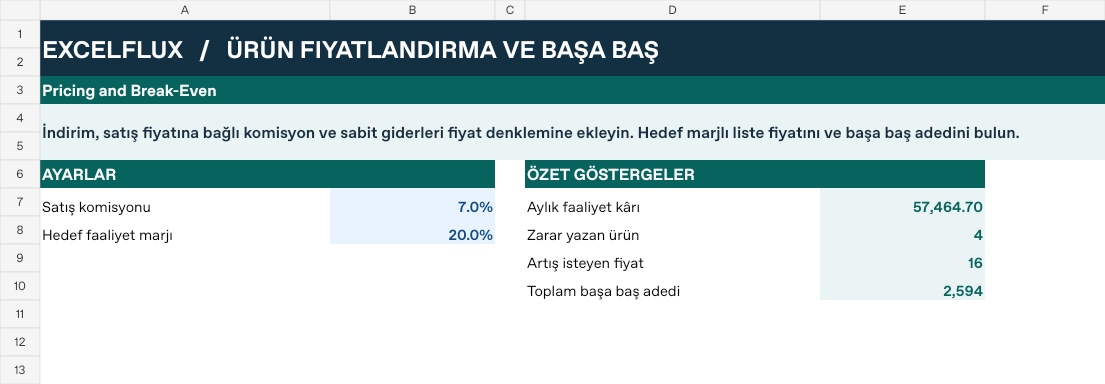
Panel!B7 | Satış komisyonu | 7% |
Panel!B8 | Hedef faaliyet marjı | 20% |
First data row
| Cell | Field | Sample value |
|---|---|---|
Veri!A7 | Ürün | UR-401 |
Veri!B7 | Liste fiyatı | 440 |
Veri!C7 | Aylık adet | 120 |
Veri!D7 | Birim maliyet | 230 |
Veri!E7 | İndirim | 10% |
Veri!F7 | Aylık sabit gider | 10,800 |
Calculated results and formulas
These values are calculated from the supplied workbook examples.
Formulas below use English Excel syntax. Function names and separators can vary with your Excel locale.
| Cell | Field | Sample value |
|---|---|---|
Veri!G7 | Birim net satışCell formula=IF(A7="","",B7*(1-E7)) | 396 |
Veri!H7 | Birim katkıCell formula=IF(A7="","",G7*(1-Panel!$B$7)-D7) | 138.28 |
Veri!I7 | Aylık faaliyet kârıCell formula=IF(A7="","",C7*H7-F7) | 5,793.6 |
Veri!J7 | Başa baş adediCell formula=IF(A7="","",IF(H7>0,ROUNDUP(F7/H7,0),"")) | 79 |
Veri!K7 | Hedef liste fiyatıCell formula=IF(A7="","",IF(AND(C7>0,E7<1,(1-Panel!$B$7-Panel!$B$8)>0),(D7+F7/C7)/((1-E7)*(1-Panel!$B$7-Panel!$B$8)),"")) | 487.06 |
Veri!L7 | Liste fiyatı farkıCell formula=IF(A7="","",IF(ISNUMBER(K7),K7-B7,"")) | 47.06 |
Dashboard indicators
These values are calculated from the supplied workbook examples.
| Cell | Field | Sample value |
|---|---|---|
Panel!E7 | Aylık faaliyet kârı | 57,464.7 |
Panel!E8 | Zarar yazan ürün | 4 |
Panel!E9 | Artış isteyen fiyat | 16 |
Panel!E10 | Toplam başa baş adedi | 2,594 |
Change one input and check the result
- Open the Veri sheet in the sample workbook.
B7→ enter 520.G7expected value 468.- Review the affected dashboard metrics. Restore the test input or save the example as a separate copy before using your own data.
Interpretation and troubleshooting
Net selling price differs from list price. A zero or negative unit contribution cannot be offset by higher volume. Review the volume assumption behind the target price.
If the result does not change, confirm the input cell and sheet and check that automatic calculation is enabled. To reproduce the example, leave the remaining inputs at their starting values.