Support Desk SLA
Record opening, first response and resolution times. Monitor priority-specific response and resolution breaches, including open tickets.
Macro-free .xlsx · 18 sample records · Workbook labels in Turkish
Results from the sample workbook
- Yanıt süresi (saat)
- 3
- Çözüm süresi (saat)
- 108
- Yanıt hedefi (saat)
- 2
Who can use it, and for what?
IT support and service desks
Track first-response and resolution targets separately. Identify open tickets already past target.
Customer service and field support
Review overdue tickets by priority and age when handing work over to another team.
A worked example from the workbook
SR-501 took three hours to receive a first response against a two-hour target. It remains open after 108 hours at the report time, past the 12-hour resolution target. The workbook flags both breaches separately.
| Measure | Sample result |
|---|---|
| Yanıt süresi (saat) | 3 |
| Çözüm süresi (saat) | 108 |
| Yanıt hedefi (saat) | 2 |
| Çözüm hedefi (saat) | 12 |
| Yanıt ihlali | 1 |
| Çözüm ihlali | 1 |
| Açık | 1 |
How do you start with your own data?
- Enter opening, first response and resolution as Excel timestamps. Leave an event blank until it occurs and set the P1–P3 targets to the team’s agreed levels.
- Make a copy of the sample workbook. Review the settings on Panel and replace the blue inputs on Veri with your own data.
- Compare dashboard totals with the row-level results on Veri. The written guide below shows how to test a change.
Detailed Excel guide
Initial setup
Enter opening, first response and resolution as Excel timestamps. Leave an event blank until it occurs and set the P1–P3 targets to the team’s agreed levels.
- Open a copy and try the sample data first. Panel contains settings and totals. Veri contains editable inputs and formulas. Workbook field labels are in Turkish and appear as written in the file.
- Compare the settings and the first data row below with the workbook. Blue cells are inputs. Preserve the working formulas.
- The workbook has 18 populated examples and 98 prepared formula rows. Keep the headers and replace the input values with your own records.
Panel settings
| Cell | Field | Sample value |
|---|---|---|
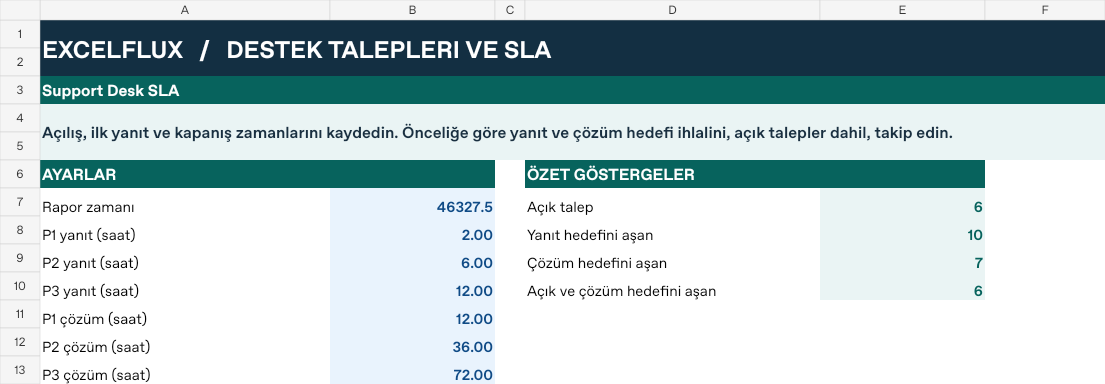
Panel!B7 | Rapor zamanı | 2026-11-01 12:00 |
Panel!B8 | P1 yanıt (saat) | 2 |
Panel!B9 | P2 yanıt (saat) | 6 |
Panel!B10 | P3 yanıt (saat) | 12 |
Panel!B11 | P1 çözüm (saat) | 12 |
Panel!B12 | P2 çözüm (saat) | 36 |
Panel!B13 | P3 çözüm (saat) | 72 |
First data row
| Cell | Field | Sample value |
|---|---|---|
Veri!A7 | Talep | SR-501 |
Veri!B7 | Öncelik (1–3) | 1 |
Veri!C7 | Açılış | 2026-10-28 00:00 |
Veri!D7 | İlk yanıt | 2026-10-28 03:00 |
Veri!E7 | Kapanış | — |
Calculated results and formulas
These values are calculated from the supplied workbook examples.
Formulas below use English Excel syntax. Function names and separators can vary with your Excel locale.
| Cell | Field | Sample value |
|---|---|---|
Veri!F7 | Yanıt süresi (saat)Cell formula=IF(A7="","",MAX(0,(IF(D7>0,D7,Panel!$B$7)-C7)*24)) | 3 |
Veri!G7 | Çözüm süresi (saat)Cell formula=IF(A7="","",MAX(0,(IF(E7>0,E7,Panel!$B$7)-C7)*24)) | 108 |
Veri!H7 | Yanıt hedefi (saat)Cell formula=IF(A7="","",IF(B7=1,Panel!$B$8,IF(B7=2,Panel!$B$9,Panel!$B$10))) | 2 |
Veri!I7 | Çözüm hedefi (saat)Cell formula=IF(A7="","",IF(B7=1,Panel!$B$11,IF(B7=2,Panel!$B$12,Panel!$B$13))) | 12 |
Veri!J7 | Yanıt ihlaliCell formula=IF(A7="","",IF(ROUND(F7,6)>H7,1,0)) | 1 |
Veri!K7 | Çözüm ihlaliCell formula=IF(A7="","",IF(ROUND(G7,6)>I7,1,0)) | 1 |
Veri!L7 | AçıkCell formula=IF(A7="","",IF(E7>0,0,1)) | 1 |
Dashboard indicators
These values are calculated from the supplied workbook examples.
| Cell | Field | Sample value |
|---|---|---|
Panel!E7 | Açık talep | 6 |
Panel!E8 | Yanıt hedefini aşan | 10 |
Panel!E9 | Çözüm hedefini aşan | 7 |
Panel!E10 | Açık ve çözüm hedefini aşan | 6 |
Change one input and check the result
- Open the Veri sheet in the sample workbook.
E7→ enter 2026-10-28 06:00.L7expected value 0.- Review the affected dashboard metrics. Restore the test input or save the example as a separate copy before using your own data.
Interpretation and troubleshooting
Review response and resolution breaches separately. The report uses elapsed calendar hours and the reporting timestamp for open work. Business-hour calendars require a separate model.
If the result does not change, confirm the input cell and sheet and check that automatic calculation is enabled. To reproduce the example, leave the remaining inputs at their starting values.