Electricity and Peak Demand
Track day, peak and night usage separately. Estimate energy costs, excess demand charges and potential savings from load shifting.
Macro-free .xlsx · 12 sample records · Workbook labels in Turkish
Results from the sample workbook
- Toplam enerji (kWh)
- 40,000
- Enerji maliyeti
- 113,425
- Güç aşımı maliyeti
- 2,210
Who can use it, and for what?
Energy and facilities managers
Separate consumption charges from the cost of exceeding the demand limit.
Production and shift planners
Compare the modelled effect of moving suitable loads to another tariff window.
A worked example from the workbook
The January example has 40,000 kWh of consumption and a 2,210 demand overage charge. The workbook’s shift scenario reduces the modelled cost from 115,635 to 111,716.25. Use the difference to screen flexible loads.
| Measure | Sample result |
|---|---|
| Toplam enerji (kWh) | 40,000 |
| Enerji maliyeti | 113,425 |
| Güç aşımı maliyeti | 2,210 |
| Toplam model bedeli | 115,635 |
| Yük kaydırma tasarrufu | 3,918.75 |
| Senaryo bedeli | 111,716.25 |
How do you start with your own data?
- Enter energy by time band in kilowatt-hours and demand limits and readings in kilowatts. Align tariff tax basis with the bill. Set a load-shift share that can actually be moved.
- Make a copy of the sample workbook. Review the settings on Panel and replace the blue inputs on Veri with your own data.
- Compare dashboard totals with the row-level results on Veri. The written guide below shows how to test a change.
Detailed Excel guide
Initial setup
Enter energy by time band in kilowatt-hours and demand limits and readings in kilowatts. Align tariff tax basis with the bill. Set a load-shift share that can actually be moved.
- Open a copy and try the sample data first. Panel contains settings and totals. Veri contains editable inputs and formulas. Workbook field labels are in Turkish and appear as written in the file.
- Compare the settings and the first data row below with the workbook. Blue cells are inputs. Preserve the working formulas.
- The workbook has 12 populated examples and 12 prepared formula rows. Keep the headers and replace the input values with your own records.
Panel settings
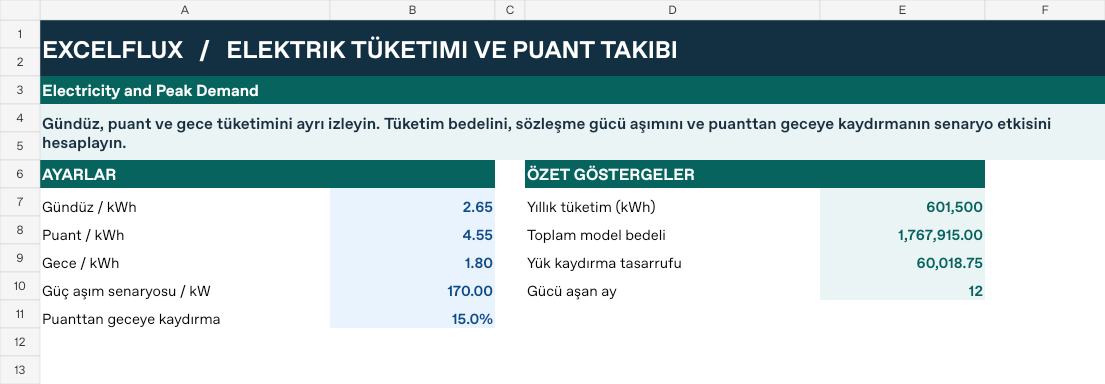
| Cell | Field | Sample value |
|---|---|---|
Panel!B7 | Gündüz / kWh | 2.65 |
Panel!B8 | Puant / kWh | 4.55 |
Panel!B9 | Gece / kWh | 1.8 |
Panel!B10 | Güç aşım senaryosu / kW | 170 |
Panel!B11 | Puanttan geceye kaydırma | 15% |
First data row
| Cell | Field | Sample value |
|---|---|---|
Veri!A7 | Ay | 2026 / 1 |
Veri!B7 | Gündüz (kWh) | 18,000 |
Veri!C7 | Puant (kWh) | 9,500 |
Veri!D7 | Gece (kWh) | 12,500 |
Veri!E7 | Ölçülen güç (kW) | 173 |
Veri!F7 | Güç sınırı (kW) | 160 |
Calculated results and formulas
These values are calculated from the supplied workbook examples.
Formulas below use English Excel syntax. Function names and separators can vary with your Excel locale.
| Cell | Field | Sample value |
|---|---|---|
Veri!G7 | Toplam enerji (kWh)Cell formula=IF(A7="","",SUM(B7:D7)) | 40,000 |
Veri!H7 | Enerji maliyetiCell formula=IF(A7="","",B7*Panel!$B$7+C7*Panel!$B$8+D7*Panel!$B$9) | 113,425 |
Veri!I7 | Güç aşımı maliyetiCell formula=IF(A7="","",MAX(0,E7-F7)*Panel!$B$10) | 2,210 |
Veri!J7 | Toplam model bedeliCell formula=IF(A7="","",H7+I7) | 115,635 |
Veri!K7 | Yük kaydırma tasarrufuCell formula=IF(A7="","",C7*Panel!$B$11*(Panel!$B$8-Panel!$B$9)) | 3,918.75 |
Veri!L7 | Senaryo bedeliCell formula=IF(A7="","",J7-K7) | 111,716.25 |
Dashboard indicators
These values are calculated from the supplied workbook examples.
| Cell | Field | Sample value |
|---|---|---|
Panel!E7 | Yıllık tüketim (kWh) | 601,500 |
Panel!E8 | Toplam model bedeli | 1,767,915 |
Panel!E9 | Yük kaydırma tasarrufu | 60,018.75 |
Panel!E10 | Gücü aşan ay | 12 |
Change one input and check the result
- Open the Veri sheet in the sample workbook.
E7→ enter 158.I7expected value 0.- Review the affected dashboard metrics. Restore the test input or save the example as a separate copy before using your own data.
Interpretation and troubleshooting
Zero demand surcharge still leaves energy charges. Savings depend on the price difference between peak and night. Keep the scenario separate from the base bill.
If the result does not change, confirm the input cell and sheet and check that automatic calculation is enabled. To reproduce the example, leave the remaining inputs at their starting values.